How Hermes signs in to websites for you: passwords, 2FA, and the password manager you already use
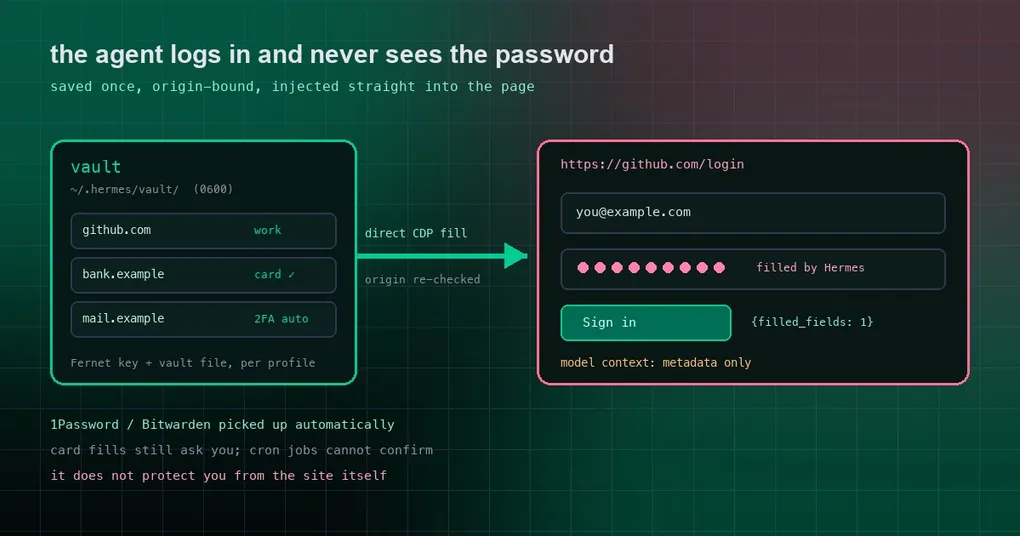
It is 2am and the scheduled job you set up is on its last step: submitting a report to an internal dashboard. It stops dead at the sign-in page. The password is in your head, or in a note, and the only way to hand it over is to paste it into the chat window — where it will live on in the transcript, the logs and the model’s context. For a long time that was just how agent browsing worked, and it is the reason a lot of people never let an agent near an account that mattered. Hermes v0.22.0 changes the plumbing: the first time the agent reaches a sign-in page with no saved login, it asks you right there, and afterwards those sites simply work.
The first time it hits a login page, it asks once
On the CLI or TUI the prompt is masked text in your terminal, something like 🔐 Save login for github.com: you type the identifier first, and that part is shown, then the password, which is hidden. Desktop shows a card instead — “Save your github.com login?” — with an identifier field, a masked password field, and two buttons: Save & sign in, and Don’t save. That is the whole setup. There is no key to generate and no config file to edit; if you have not installed Hermes yet, start with the install guide.
After that it just works. The password is encrypted on your machine and injected straight into the page, and the model never sees it. What comes back to the model is one line: {filled_fields: 1, origin: "https://github.com"}. The password is also registered with the redactor, so a later page read cannot echo it back into the transcript.
Two-factor codes: automatic, prompted, or on your device
| Situation | Who handles it |
|---|---|
An authenticator key was saved with the login — the setup key or otpauth:// link a site shows when you enable 2FA. 1Password and Bitwarden items that hold a TOTP seed count too. |
Hermes generates the current code and enters it. Nobody is asked. |
| The code is sent to your phone or email. | A small prompt appears in your surface — “Verification code for github.com” — you type it, and Hermes enters it into the page. The code never enters the conversation either. |
| Passkeys, hardware keys and app approvals (“tap Approve in Duo”). | Nothing to type. The agent tells you to complete it on your device and waits for the page to move on. |
The authenticator key goes in through Settings → Passwords & Logins → Add, or hermes vault add; once it is attached, the item shows a “2FA auto” badge.
Already using 1Password or Bitwarden? Nothing to enable
If the op or bw command-line tool is installed and signed in, Hermes picks it up automatically, and those website logins become fillable alongside the local ones. The first time the agent needs one of them, it asks you to unlock the manager with your master password — a masked prompt, once per session, expiring after 30 minutes idle. Hermes hands the master password to the manager’s CLI through its non-interactive channel (op signin on stdin, bw unlock --passwordenv in the child’s environment) and keeps only the session token in memory. The agent never sees the master password, the token, or any login.
An item that lists several websites — amazon.co.uk, www.amazon.co.uk, eu.account.amazon.com — fills on each of those exact origins. Nothing is inferred beyond the URLs saved on the item. To opt out of a detected manager, use hermes vault sources --disable bitwarden, or the switch in Settings → Passwords & Logins.
Cards and addresses at checkout
Cards and addresses work like logins: saved once (Settings → Passwords & Logins → Add, or hermes vault add), bound to the checkout site, filled by the agent on that site only. The difference is the approval. Every card fill asks you first, with the same prompt you get before a dangerous command, and declining writes nothing. Headless sessions — cron, webhooks, the API server — cannot confirm and are refused outright, so a prompt injection that reaches a checkout page can ask, but it cannot spend. Address fills need no confirmation.
What is stored, and where
- Desktop: Settings → Passwords & Logins lists everything saved, the detected managers with Unlock/Lock, and the Add and Remove actions.
- CLI:
hermes vault list,hermes vault add,hermes vault rm(with the item’s handle),hermes vault sources. - On disk: items live encrypted under
~/.hermes/vault/— a Fernet key and a vault file, both mode 0600 — scoped to the profile. Labels, site origins and login identifiers are visible metadata; passwords and card values never leave the vault except into the page. How the storage keys themselves are encrypted is covered in the keychain secret encryption guide. - Headless runs: cron jobs, webhooks, the API server and
hermes chat -qhave nobody to answer a prompt. Saved local logins keep working there; a locked password manager reportsunavailable_in_this_sessionand a missing login reportsprompt_unavailable. Unlock or save from an interactive session first, or give 1Password a service account token (OP_SERVICE_ACCOUNT_TOKEN).
The config keys look like this:
vault:
  onepassword:
    enabled: false          # opt OUT of a detected manager (default: on when installed)
    account: ""             # `op --account` shorthand; empty = default
    service_account_token_env: OP_SERVICE_ACCOUNT_TOKEN
  bitwarden:
    enabled: false
What it guarantees, and what it does not
What it does: the password never enters the model’s context through Hermes — not in tool results, logs, the session database, or the CLI arguments of any process. Fills happen over the supervised browser session’s direct CDP socket, and they are refused unless the page origin exactly matches the saved origin, checked again inside the page immediately before the write.
What it does not: protect against the page itself. Once a password is typed into a site, that site — and any script it runs — has it, exactly as when you type it yourself. On a cloud browser backend the vendor’s browser sees the page like any other; the trade-offs between cloud and local are covered in the cloud browser fallback write-up. The origin binding is a guard against filling on the wrong site, not against a compromised right one.
The agent-side tools behind all of this are the browser_vault tools: browser_vault_list, browser_vault_fill, browser_vault_save_login and browser_vault_enter_code. The feature shipped in v0.22.0 “The Threshold Release” (tag v0.22.0, October 13, 2026). If you want the story of how it landed, our earlier write-up on browser credential autofill goes deeper on the mechanics.