Run Hermes on Local Models: No API Key, No Account, Works Offline
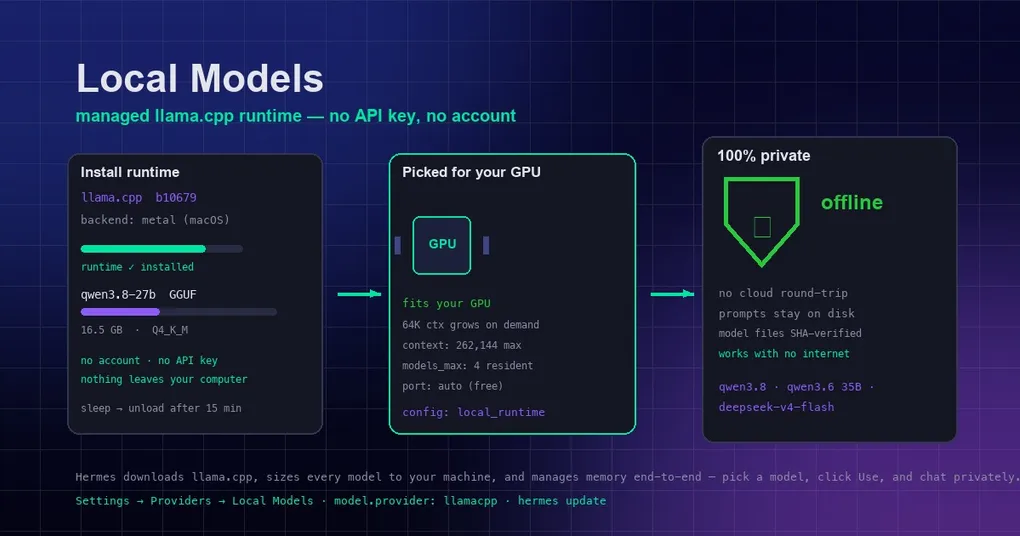
It’s Friday evening and you’re on a train, laptop open, wanting to hand Hermes a codebase you skimmed during the day — only to find your API quota is spent, while the discrete GPU in the bag has done nothing but play games. Or you’re reviewing a contract that isn’t public yet and don’t want a single character of it passing through anyone’s cloud server, even in transit. As of early September 2026, Hermes turned “running large models locally” from a fiddly hobby into a one-click switch: it downloads and maintains the llama.cpp inference engine for you, picks the right build of each model for your hardware, and manages GPU memory end to end. No account, no API key — and once a model is downloaded, it works fully offline.
Why DIY local models used to be such a pain
If you’ve ever tried to run an open model on your own machine, you know the grind. First you install an inference engine (llama.cpp, Ollama, or similar). Then you hunt down a GGUF file — the community-standard packaging format that stuffs a model’s weights and architecture into a single file. But that’s only the start: interrupted downloads you redo by hand; out-of-VRAM errors that force you to figure out which layers to spill into system RAM and in what order; a context window that starts far too small; and quantization choices (compressing weights to lower precision to save memory — Q4 or Q8?) that feel like a coin flip.
Tools like Ollama solved part of that. Hermes goes further and takes over the whole chain — engine, downloads, and memory placement — leaving you with three clicks.
The three-step desktop flow
In a current Hermes Desktop build, open Settings → Providers → Local Models. On macOS and Windows this entry is now visible by default. Then:
- Click “Install runtime.” Hermes downloads the official llama.cpp build for your hardware (a few hundred MB), verifies it, and keeps it updated on future releases. llama.cpp is the open-source engine that runs the model on your GPU or CPU.
- Pick a model from the catalog and click “Download.”
- Click “Use.” New chats now run on the local model.
The server starts and stops with Hermes and survives app restarts. Switching back to a cloud provider is one click in the model picker.
What’s in the catalog — and whether your GPU can run it
The curated catalog currently holds four models, from daily-driver size up to frontier-class:
| Model | Profile | Hardware bar |
|---|---|---|
| Qwen3.8 27B | All-round agent model; vision-capable; long context stays fast | 16GB+ GPU runs it at high quality |
| Qwen3.6 35B-A3B | Larger mixture-of-experts model with multi-token prediction | 16GB+ GPU; more headroom is steadier |
| Qwen3.8 Flash Next | Frontier-scale model | Needs a very large GPU |
| DeepSeek V4 Flash | Frontier-class model | Machines with 128GB+ memory |
Before you download anything, every row is priced against your machine: memory fit (green = runs entirely in GPU memory, amber = spills to system RAM and runs slower, red = this machine can’t run it), context window, and download size. Hermes picks the highest-quality build that fits fully in your GPU — and it never offers anything below 4-bit quantization, because below that the quality loss is too severe. A machine that can’t hold the 4-bit build simply can’t run that model, and it tells you so.
The catalog is a curated starting point, not a boundary. Find more models on the same page searches all of Hugging Face, with a per-file fit check sized to your machine before you download. Already have a .gguf on disk? Add model file links it into your library without copying it, usable immediately.
Memory management: the dirty work, handled
Local models live or die by memory placement, so Hermes manages it end-to-end and exposes no knobs:
- The context window starts at a size that fully fits your GPU and grows toward the model’s native maximum as the conversation needs more room. If you see “Context window grown” in the status feed during long sessions, that’s the window expanding — not an error.
- Every recommended model gets at least a 64K context window. When a model is larger than your GPU’s memory, Hermes deliberately places the overflow in system RAM in the order that hurts least (expert weights first, never the attention cache) — trading some speed to protect the context guarantee.
- Compression only kicks in at the model’s maximum window. Growth always comes first; your history isn’t summarized away preemptively.
- Idle models unload after 15 minutes to free GPU memory, and reload automatically on the next message.
Want to watch it happen? Right-click the status bar and enable System resources for live GPU utilization, GPU memory, and RAM. The context meter always reflects the window the model is actually running with.
Privacy and offline: once downloaded, nothing leaves the machine
This is the point of local models, stated plainly: no account, no API key, and no network access after the model is downloaded. Prompts, tool calls, code — all of it stays local. For unreleased code, contracts, or medical data, that’s not “a bit more reassuring,” it’s a different category: the request never leaves your computer.
Hermes also respects setups that already run inference elsewhere:
- If a llama-server is already running on your machine, Hermes detects it and uses it instead of spawning its own.
- For full manual control, point
model.providerat any OpenAI-compatible server. - On Ollama, MLX, or custom builds, the official docs have dedicated Ollama setup and running on Mac guides.
Configuration: CLI and headless machines
The desktop UI writes the config for you, but the keys are open for CLI and headless use. The managed runtime is controlled by the local_runtime section of config.yaml:
local_runtime:
  enabled: true     # true = start the managed server with Hermes
  backend: auto     # auto | cuda | metal | vulkan | hip | cpu
                    # auto = CUDA on NVIDIA, Metal on macOS, Vulkan on other GPUs, else CPU
Models and runtime builds live under the Hermes home directory (models/ and runtimes/llamacpp/). Making a local model your main model uses the standard model.provider: llamacpp + model.default settings — the same shape as every other provider, selectable interactively with hermes model.
Requirements and release status
- Windows and Linux: NVIDIA GPU (CUDA) or CPU. macOS: Apple Silicon (Metal). Vulkan builds serve AMD GPUs.
- A GPU with 8GB+ runs the smaller catalog models comfortably; 16GB+ runs the 27–35B models at high quality.
- Downloads are byte-size checked against the catalog; an incomplete download is deleted and reported, never half-used. (Runtime engine zips are SHA-256 verified.)
One honest caveat: this capability landed via PR #100667 (the managed runtime itself, merged September 1) and PR #101823 (default-on entry point for macOS/Windows, merged September 3). It currently lives on upstream main and hasn’t shipped in a release yet — it’s newer than v0.21.0. To try it today, update Hermes to the latest main; on desktop, make sure the build includes both merges. For context on where the agent product is heading, see our v0.21.0 Pantheon release notes and our guide to choosing models.
Summary: from “can it run?” to “one click”
The real advance in local models isn’t that one model got stronger — it’s that the barrier disappeared: the engine installs itself, the build picks itself, memory manages itself, and idle models unload themselves. What used to cost you an afternoon of tutorial-reading is now three clicks in Settings. Next time you’re somewhere without connectivity — or staring at material you don’t want to hand to the cloud — remember there’s an agent that has lived on your machine all along. It just needed someone to wake it up. Start from the install guide, then find the local-models entry in the model picker (hermes model command reference).