Hermes Natively Supports Lightpanda: 9x Faster, 16x Less Memory, with Automatic Chrome Fallback
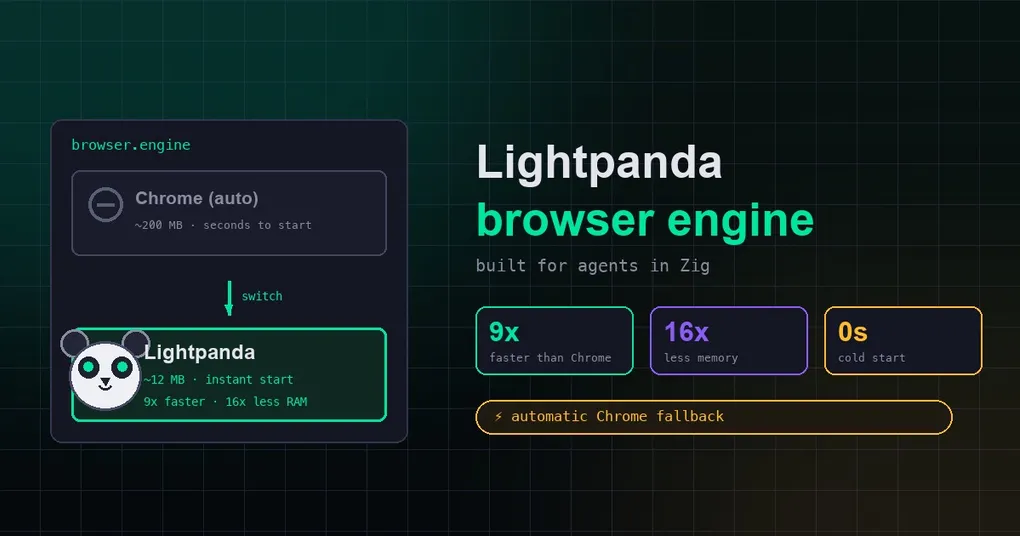
Your Hermes agent lives on a $5 VPS, quietly watching pages, scraping data, and running scheduled jobs around the clock. Everything is fine — until you look at the numbers: a single browser process is eating 200MB of RAM, takes seconds to cold-start, and when a few tasks run at once, the little box starts gasping for memory. The browser is just the agent’s eyes — why should it carry the full weight of Chrome?
That’s the gap Lightpanda was built for: a headless browser written from scratch in Zig, designed for machines and AI rather than humans. And starting with v0.13.0, Hermes natively supports it as your local browser engine. Navigation, scraping, and clicking run through Lightpanda at a fraction of the cost; when it hits something it can’t do yet — like taking a screenshot — Hermes transparently retries on Chrome. This post covers what it is, how to turn it on, and when it actually pays off.
What Lightpanda is
Lightpanda is an open-source headless browser: no window, no UI, it just loads pages, executes JavaScript, and turns content into data your programs can read. Headless browsers aren’t new — Chrome ships a headless mode of its own — but Lightpanda takes a different route:
- Written from scratch in Zig, not a Chromium fork or a WebKit patch
- No graphical rendering pipeline at all — agents and scrapers don’t need to “see” pixels, so that entire heavyweight subsystem is gone
- All resources go to JavaScript execution and network requests
Think of it as the difference between sending a fully-loaded RV to run an errand and sending someone on an e-bike. Most of the time, you just need to get there.
9x faster, 16x less memory — verified numbers
Lightpanda’s team benchmarked against Headless Chrome on an AWS EC2 m5.large instance, firing 933 real web pages concurrently:
| Metric | Lightpanda | Headless Chrome |
|---|---|---|
| Peak memory, 100 pages | 123 MB | 2 GB |
| Execution time, 100 pages | 5 s | 46 s |
That’s roughly 16x less memory and 9x faster. Add Chrome’s seconds-long cold start and ~200MB resident footprint against Lightpanda’s near-instant startup, and the difference compounds for agents that live on small VMs for weeks: a server that could only run a handful of Chrome instances can now run dozens of Lightpanda ones.
Three steps to switch engines
Hermes drives local browsers through agent-browser (Vercel’s open-source browser CLI) over CDP — the Chrome DevTools Protocol, the de facto standard for browser automation. Lightpanda support has been built in since v0.13.0; no extra plugin required.
Step 1: install the Lightpanda binary (Apple Silicon Mac example):
curl -L -o lightpanda https://github.com/lightpanda-io/browser/releases/download/nightly/lightpanda-aarch64-macos
chmod +x lightpanda
sudo mv lightpanda /usr/local/bin/
Linux users can grab the matching build from the Lightpanda docs and drop it on their PATH.
Step 2: flip the config. Open ~/.hermes/config.yaml and add one line under the browser: block:
browser:
  engine: lightpanda
Prefer environment variables? Same effect:
export AGENT_BROWSER_ENGINE=lightpandaThere are three engine options: auto (the default, Chrome), lightpanda, and chrome. To revert, just set it back to auto.
Step 3: verify. Start Hermes and run the /browser slash command:
🌐 Browser: local Lightpanda (agent-browser --engine lightpanda)
   ⚡ Lightpanda: faster navigation, no screenshot support
   Automatic Chrome fallback for screenshots and failed commands
That output means your agent’s browser tools — browser_navigate, browser_snapshot, and friends — are now executing against Lightpanda.
How the automatic Chrome fallback works
This is the cleverest part of the integration. Lightpanda is still in Beta and can’t cover everything Chrome does, but Hermes doesn’t make you figure out which operations it supports. There are three layers of fallback:
- Screenshots route to Chrome automatically: Lightpanda has no graphical renderer, so a screenshot returns a placeholder image. Hermes detects it by file size (a PNG under 20KB is the tell) and re-takes the screenshot in Chrome.
browser_vision— the tool that sends screenshots to a vision model — skips the round-trip entirely and pre-routes straight to Chrome when Lightpanda is configured. - Failed commands retry on Chrome: if a command times out or errors on Lightpanda, Hermes transparently retries it in Chrome.
- State isolation: fallback runs in a separate throwaway Chrome session, so the two engines never contaminate each other’s state.
Lightpanda handles the fast path; Chrome handles the edge cases; Hermes does the switching. You don’t have to think about it.
What works, what doesn’t yet
The core commands Lightpanda supports today happen to cover the whole agent workflow:
| Supported ✅ | Falls back to Chrome ⚡ | Not supported yet ❌ |
|---|---|---|
open |
screenshot |
File uploads |
snapshot |
pdf |
Multi-tab contexts |
click |
Any failing/timing-out command | Clipboard |
type |
Geolocation emulation | |
scroll |
Network condition emulation | |
back |
||
press |
||
eval |
For most agent workloads — crawling, scraping, form automation, scheduled checks — the “supported” column is enough.
When Lightpanda pays off
Good fits:
- Long-lived agents: for a 24/7 agent on a VPS, browser memory is a recurring cost — Lightpanda’s savings compound over time
- Massively parallel scraping: when you want dozens of concurrent browser instances, RAM budget decides how many you can run
- Startup-sensitive workloads: cold start drops from seconds to instant, which makes short tasks feel snappier
Hold off for now:
- Vision-heavy workflows: if you constantly screenshot and analyze pages (CAPTCHAs, visual verification), the fallback works but every detour through Chrome eats into the gains
- Complex modern pages: Lightpanda is Beta — exotic single-page apps or niche Web APIs can hit compatibility issues. The fallback means the worst case is a quiet downgrade to Chrome, not a crash
A few practical notes
- Make sure the binary is on your PATH before switching;
lightpanda versionshould run cleanly first - The engine setting only affects the local
agent-browserpath — cloud browser providers like Browserbase or Firecrawl are configured separately and unaffected - Want to compare before committing? Run with
engine: lightpandaon a test machine for a day, watch memory usage and success rates, then decide
A browser is to an agent what eyes are to a person — you don’t need it to be flashy, you need it to look fast, look accurately, and not burn a hole in your budget. The Lightpanda integration moves Hermes a step closer: everyday operations run on a ~12MB engine, with Chrome standing by for the hard cases. To see the full browser toolset, check the browser automation docs; if you’re still weighing which browser backend to use, this post on Browser Use becoming the default is worth a read. Once Hermes is installed, the steps above will have you switched over in minutes.